Assignment 5: FYI
This page is only for your information.
Table of Contents
Setup
In this assignment, we assume macOS as an experiment environment.
Install iperf3 using Homebrew:
$ sudo brew install iperf3
If you are using Linux virtual machine we provide before, you can install it by:
$ sudo apt install iperf3
FYI
Usage of iperf3 command
In this assignment, we have to create TCP connection with some servers.
The servers we provide in this assignment are running iperf3 in server mode at specific port numbers.
To execute iperf3 in client mode, execute iperf3 with -c option as follows:
$ iperf3 -c <IP address of a server> -p <port number of a server: default is 5201>
In default, iperf3 sends packets for 10 seconds.
By using the -t option, you can change the time in seconds.
Monitoring TCP communication with Wireshark
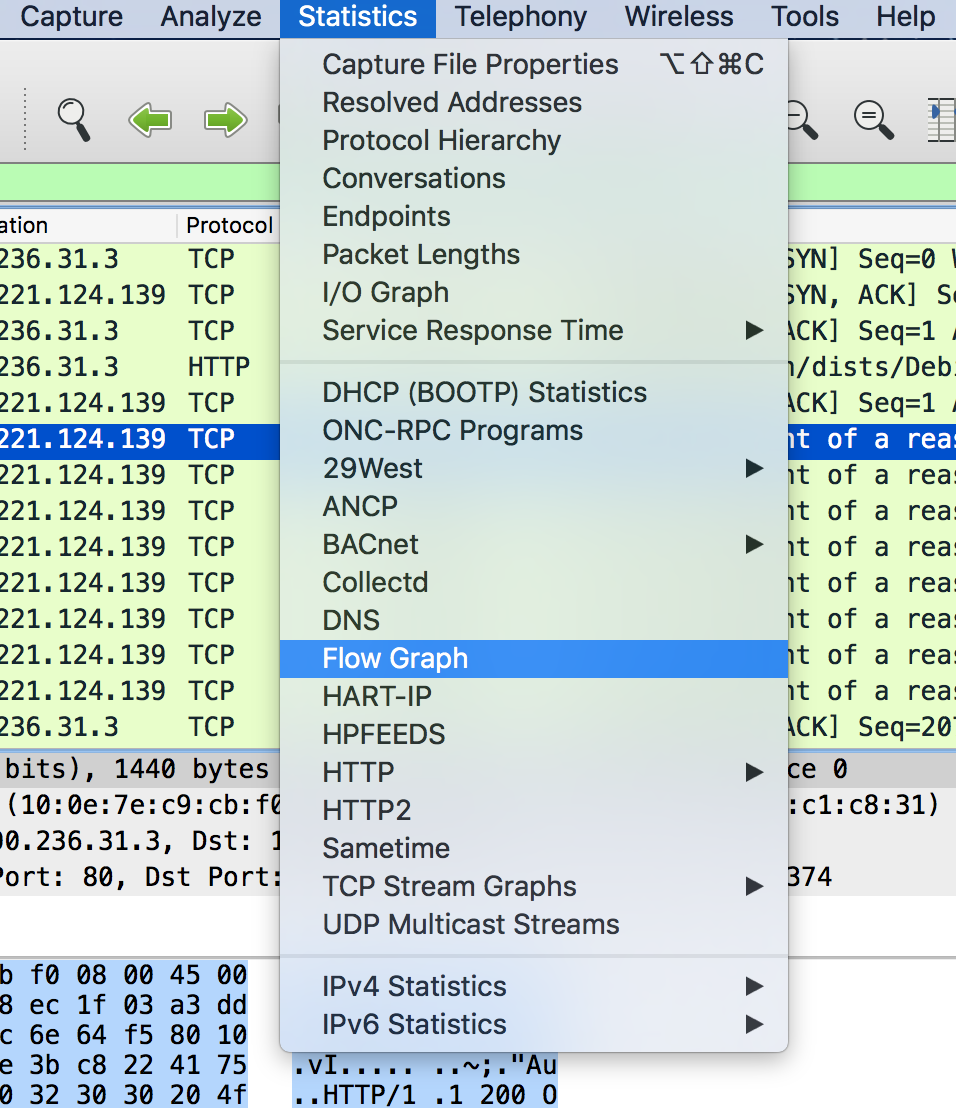
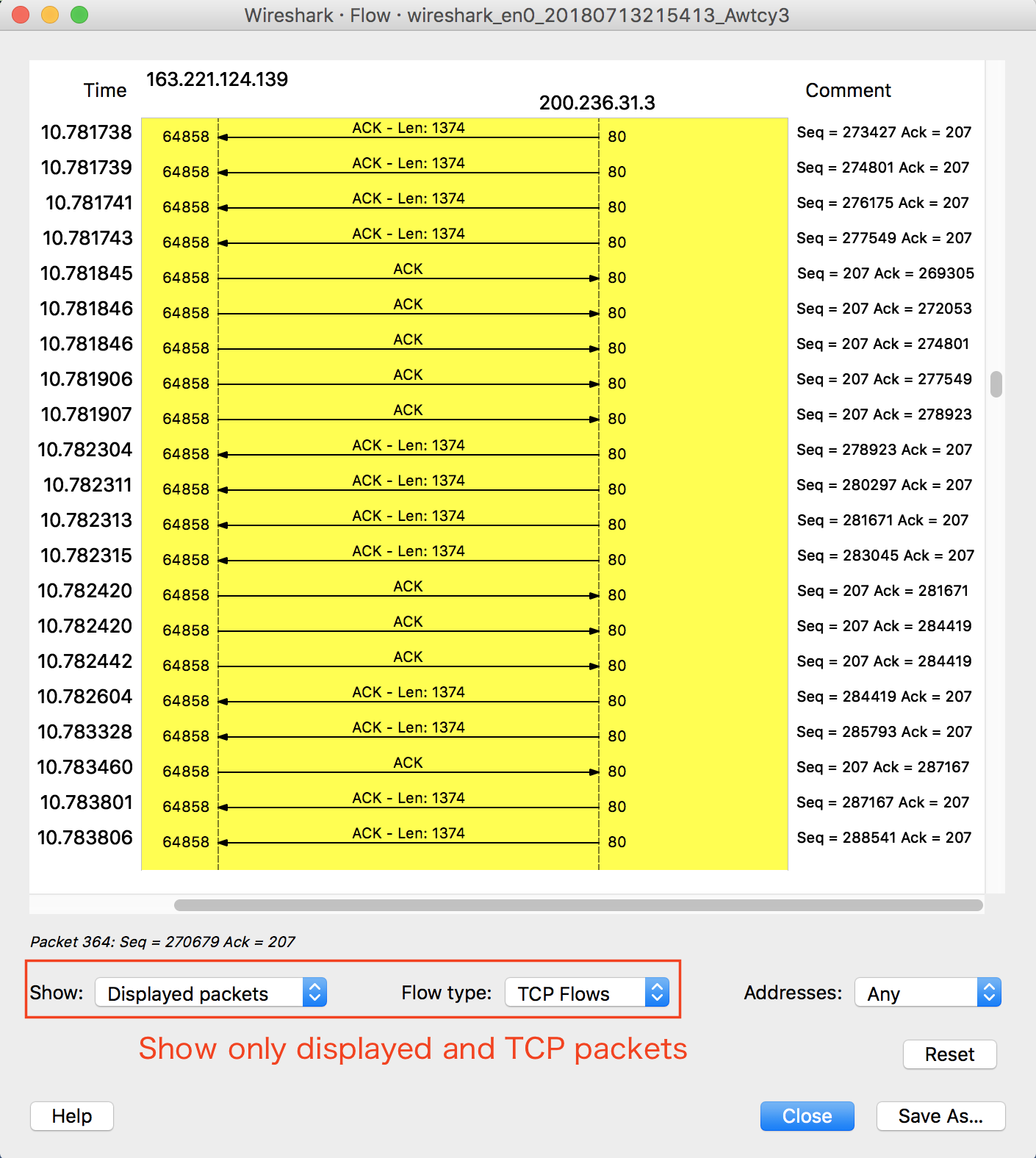
We explain how to see a flow graph of TCP communication by using Wireshark.
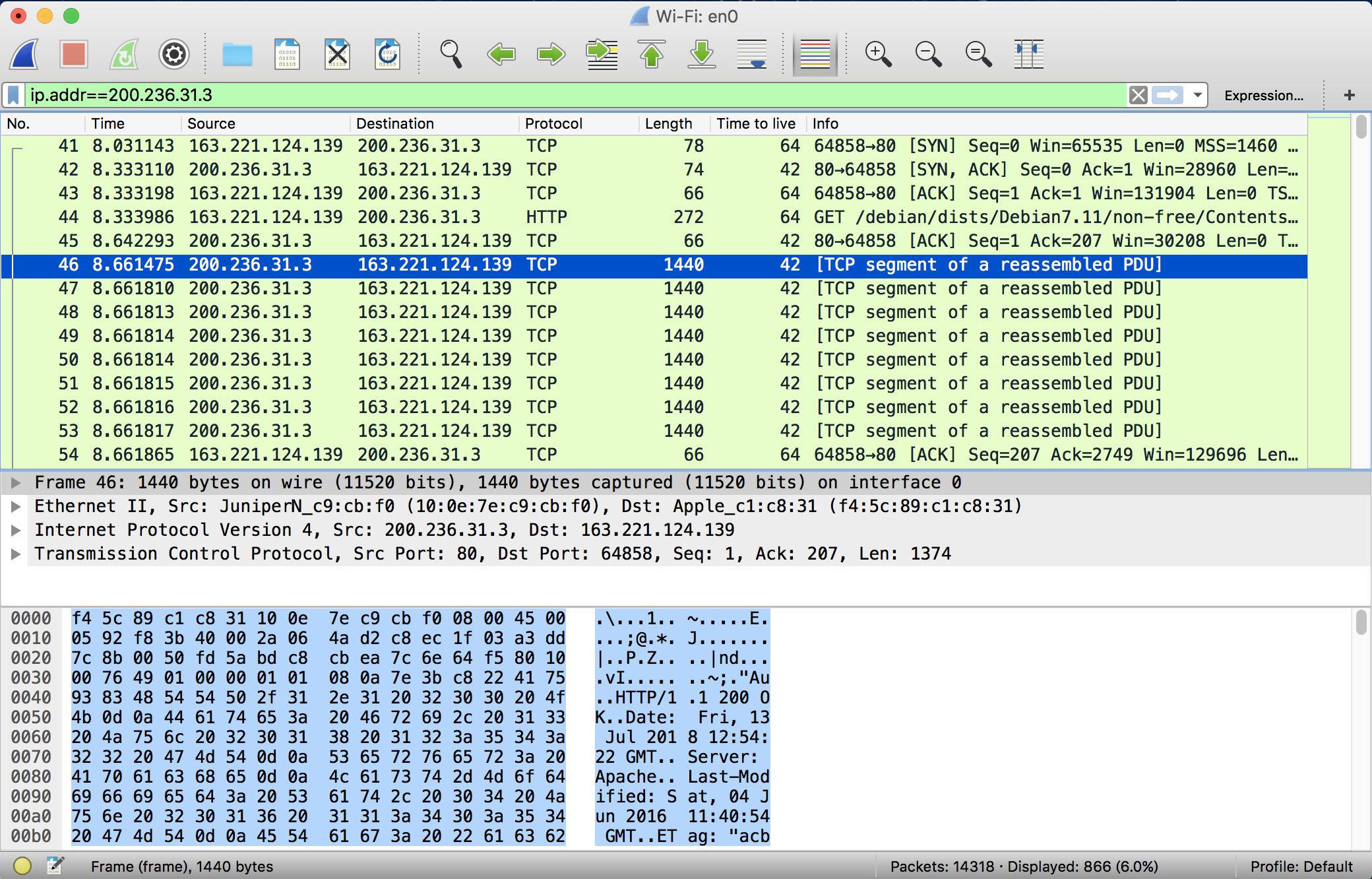
In this example, we have downloaded a file from the server that is located in Brazil (having the .br domain name). You can display only traffic of communication relating to a host (website) you selected. Use a filter “ip.addr”.
You can use this functionality of Wireshark to analyze TCP communication.